Installing Nginx Ingress Controller
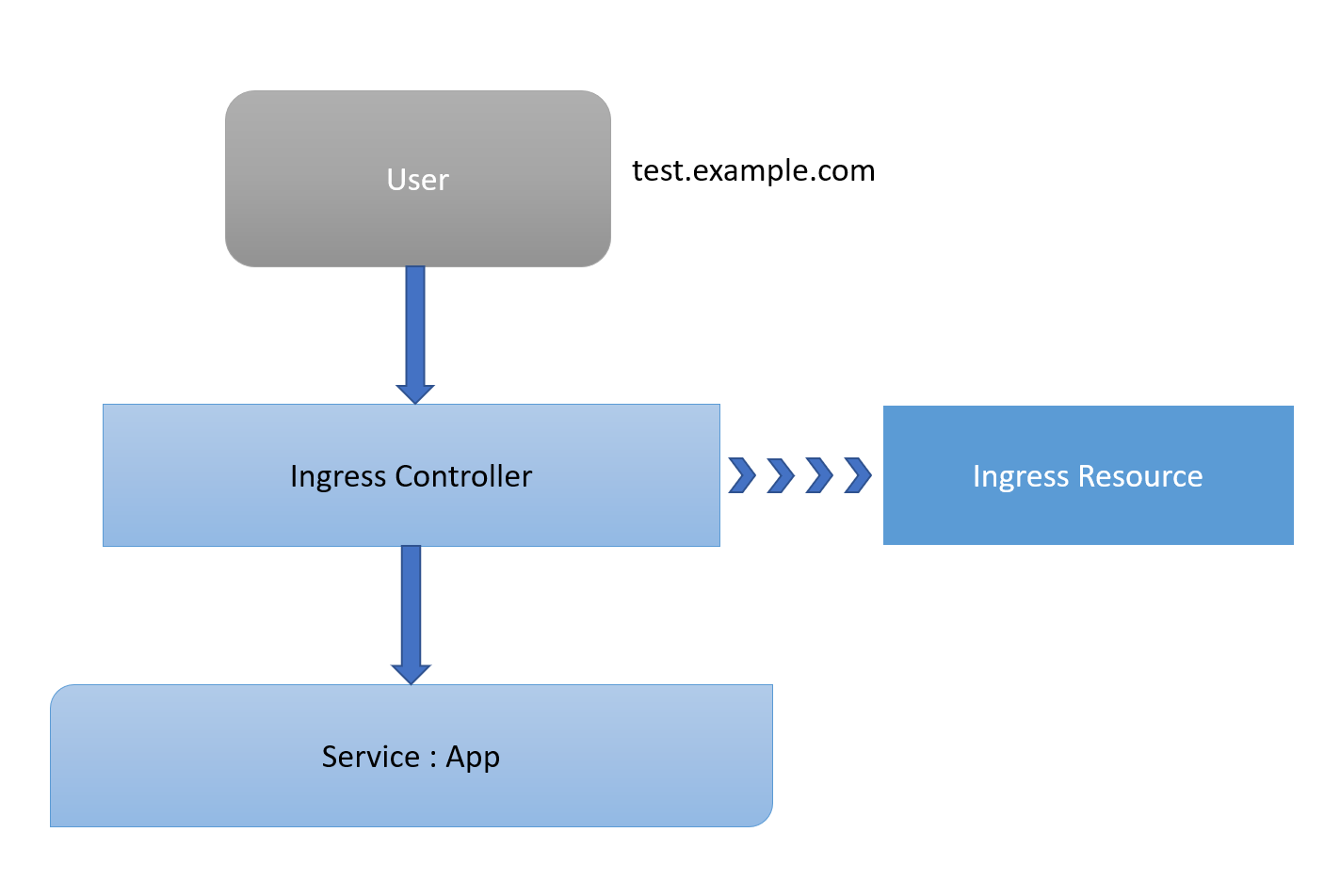
Prerequisite
Kubernetes Cluster up and running with master and node or GKE or EKS or any other type of k8s setup.
Here we are using GCP as a cloud provider for LoadBalancer Service. In case if you do not want to use LoadBalancer you can skip the steps.
Installing Helm
1- Download script
curl https://raw.githubusercontent.com/kubernetes/helm/master/scripts/get > get_helm.sh
2- Helm client install
chmod 700 get_helm.sh
./get_helm.sh
3- Init Helm
helm init
Installing Tiller
1- Run the following commands to install the server-side tiller to the Kubernetes cluster with RBAC enabled
kubectl create serviceaccount --namespace kube-system tiller
2- Create a tiller Service Account
kubectl create clusterrolebinding tiller-cluster-rule --clusterrole=cluster-admin --serviceaccount=kube-system:tiller
kubectl patch deploy --namespace kube-system tiller-deploy -p '{"spec":{"template":{"spec":{"serviceAccount":"tiller"}}}}'
3- Initialize Helm with newly-created service account
helm init --service-account tiller --upgrade
4- Checking tiller running
kubectl get deployments -n kube-system
Deploy an application in Kubernetes
1- Deploying simple Hello-app
kubectl create deployment hello-app --image=gcr.io/google-samples/hello-app:1.0
2- Expose the hello-app Deployment as a Service
kubectl expose deployment hello-app --port=8080
Deploying the NGINX Ingress Controller via Helm
The Kubernetes platform gives administrators flexibility when it comes to Ingress Controllers. You can integrate your own rather than having to work with your provider's built-in offering. The NGINX controller must be exposed for external access. This is done using Service type: LoadBalancer on the NGINX controller service. On Kubernetes Engine, this creates a Google Cloud Network (TCP/IP) Load Balancer with NGINX controller Service as a backend. Google Cloud also creates the appropriate firewall rules within the Service's VPC to allow web HTTP(S) traffic to the load balancer frontend IP address.
1- Deploy NGINX Ingress Controller
helm install --name nginx-ingress stable/nginx-ingress --set rbac.create=true
2- Check Ingress Controller
kubectl get service nginx-ingress-controller
Wait for few moments while GCP LB get deployed and it should show the external IP
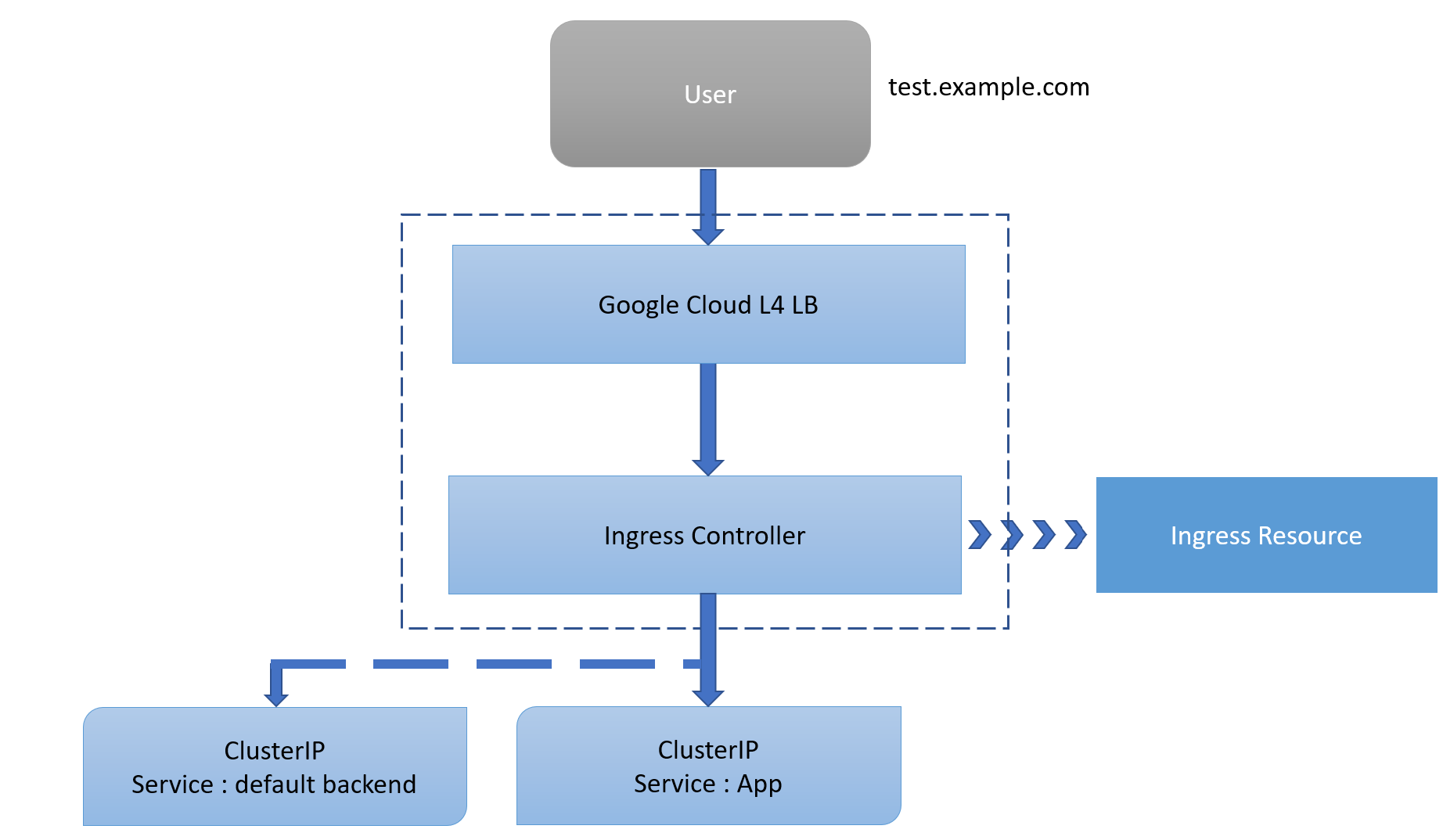
Configure Ingress Resource
1- Create a simple Ingress Resource file which uses the NGINX Ingress Controller.
This Ingress Resource defines an inbound L7 rule for path /hello to service hello-app on port 8080.
vim ingress-resource.yml
apiVersion: extensions/v1beta1
kind: Ingress
metadata:
  name: ingress-resource
  annotations:
    kubernetes.io/ingress.class: nginx
    nginx.ingress.kubernetes.io/ssl-redirect: "false"
spec:
  rules:
  - http:
      paths:
      - path: /hello
        backend:
          serviceName: hello-app
          servicePort: 8080
2- Apply Rules to Kubernetes
kubectl apply -f ingress-resource.yml
3- Check in backend
kubectl get ingress ingress-resource
4- Check in browser
http://external-ip-of-ingress-controller/hello